Why Is a Site Blocked on My Network, and How to Fix It
Posted on 6/20/2026
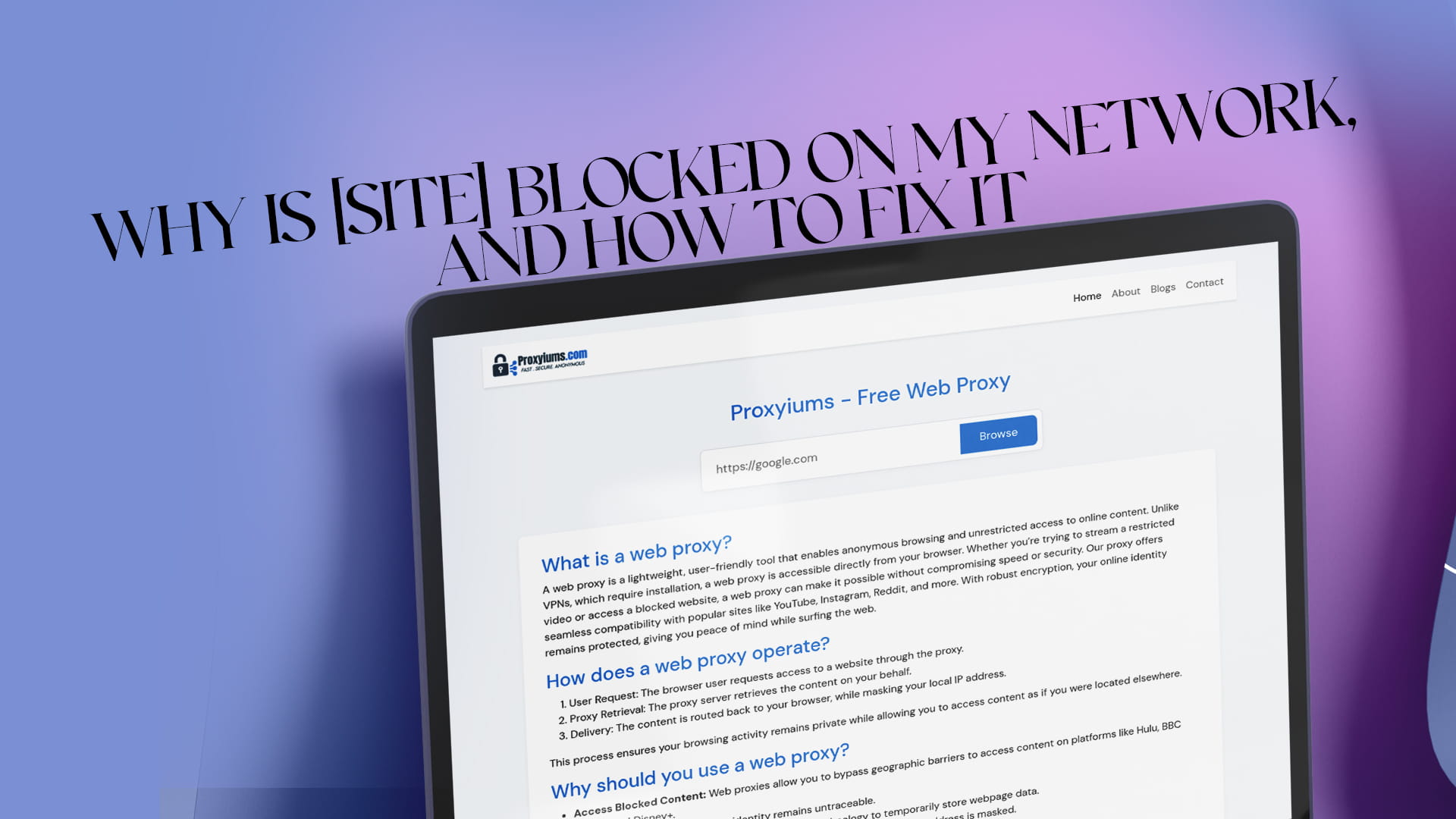
You type in a familiar address, hit enter, and instead of the page, you get an error or a "this site is blocked" notice. Before you can fix it, you need to know what is actually causing the block, because the right solution depends entirely on where the block lives. This guide explains the common reasons a site gets blocked on a network, how to diagnose which one you are facing, and how to fix each, including a quick method that works no matter the cause.
The common reasons a site gets blocked
Most blocks fall into a handful of categories. Sorting out which one applies is the key to fixing it.
Network or firewall filtering. The network you are on, such as school, office, or public Wi-Fi, runs a firewall or web gateway that filters certain sites by category or specific address. This is the most common cause of a "blocked" message on a managed network.
DNS filtering. DNS is the system that turns a domain name into the numeric IP address your device connects to. Many networks and internet providers block sites at this level by simply refusing to return the address, so the site never loads.
ISP or government blocking. Your internet provider may block a site to comply with regulations, a court order, or content policies. In some regions, blocks are imposed at the national level.
Geo-restriction. The site itself may only be available in certain countries and blocks visitors from elsewhere based on their IP address.
Website-side blocks. Sometimes the block comes from the website's own server, which may have banned your IP address or returned a 403 error refusing your request.
Parental controls. On a home network or a personal device, a parental control system or router setting may be doing the filtering.
How to diagnose which type of block you have
You do not need technical skills to narrow this down. A few quick checks usually reveal the cause.
Read the error message. The wording is a strong clue. "This site can't be reached" often points to a DNS or network problem, where your device cannot find the site's address. A "403 Forbidden" usually means the server understood your request but is refusing it, which points to a website-side or permission block. A branded splash page from your internet provider, naming the company and stating the site is restricted, points clearly to an ISP block.
Test on mobile data versus Wi-Fi. This is the single most useful test. If the site loads on your phone's cellular data but not on the Wi-Fi, the Wi-Fi network is doing the blocking. If it fails on both, the cause is more likely your provider, a device setting, or the site itself.
Test with a proxy or different DNS. If the site loads through a web proxy or after changing your DNS, you have confirmed a network or DNS-level block rather than a problem with the site.
Once you know roughly where the block sits, you can match it to a fix.
Fix 1: The quick universal fix — use a web proxy
Whatever the cause, a web proxy is the fastest way to get back to a blocked page, which is why it is worth knowing first. A proxy acts as a middleman: instead of your device connecting straight to the blocked site, it connects to the proxy, which fetches the page and sends it back to you. Because the request now appears to come from the proxy rather than your network or the blocked domain, network and DNS-level filters do not catch it, and geo-blocks can be sidestepped too.
The big advantage is that it needs nothing installed. It runs in your browser, which makes it the easiest option on any device, including managed ones where you cannot add software.
Proxyiums is a user-friendly web proxy made for exactly this. It enables anonymous browsing and unrestricted access to online content directly from your browser. Unlike a VPN, which requires installation, Proxyiums is accessible the moment you open the page. Whether you are trying to stream a restricted video or open a blocked website, it takes a couple of clicks. This guide to Proxyiums as a free web proxy to unblock websites explains how it handles restricted content.
It also protects your privacy. Proxyiums encrypts your connection with SSL, even on sites that lack it, and hides your real IP behind the proxy's. To use it, open your browser, go to the Proxyiums site, paste the blocked URL, connect, and browse. The details of how the web proxy works online are explained on the site, and if anonymity is your goal, this overview of browsing fast and anonymously with a free web proxy is a useful read.
Fix 2: If it is a DNS block, change your DNS
If your test showed a DNS-level block, switching to a public resolver often fixes it directly. The most common options are Google's 8.8.8.8 and 8.8.4.4, and Cloudflare's 1.1.1.1.
On a computer, you change this in your network adapter settings. On an iPhone or iPad, open Settings, tap Wi-Fi, tap the information icon next to your network, choose Configure DNS, set it to Manual, and enter the public addresses. On Android, look for Private DNS in your network settings. After saving, flush your DNS cache or simply reload the site. This is a clean, free fix for blocks imposed at the DNS level, though it will not help with blocks at other levels.
Fix 3: If a network admin set the block, ask for an allowlist
If you are on a managed network and the site genuinely belongs there, the simplest and most legitimate fix is to ask whoever runs the network to add it to the allowlist. An administrator can whitelist a specific site in the firewall or web gateway in moments. This is the cleanest route for a work or school resource that was caught by an overly broad filter, and it avoids any policy concerns.
Fix 4: If your ISP is blocking it, route around the block
If a branded splash page or your mobile-versus-Wi-Fi test pointed to an ISP block, a web proxy or a DNS change is usually enough to route around it for legitimate content. Be mindful that some ISP blocks exist because of legal requirements in your region, so make sure what you are accessing is lawful and appropriate where you are.
Fix 5: If it is a geo-restriction, change your apparent location
When a site is only available in certain countries, the block is based on your IP address. A web proxy that connects through a server in an allowed location can present a different IP, letting the site load. This is the typical fix for region-locked content, again keeping local laws in mind.
Fix 6: If the website itself is blocking you
A 403 error or a ban that follows you across networks suggests the block is on the website's end. There is less you can do here, but a few things help. Sometimes the block is temporary and clearing after a while works. A proxy that gives you a different IP can help if your specific address was flagged. If it is your own site or account, contacting the site's support is the proper route.
Staying safe while unblocking
Whatever method you use, a few precautions matter. Prefer tools that use SSL encryption, like Proxyiums, so your traffic stays private on the network. Avoid random "unblocker" extensions and apps, since many are ad-heavy or carry malware. Be cautious with any mirror or proxy page that asks for login details, as those are often built to steal credentials. And keep your activity legitimate and appropriate, especially on networks and in regions with rules about what you can access. It is also worth keeping tabs on your broader online footprint; this guide to checking your username availability across the internet is a good place to start.
Final thoughts
A blocked site is rarely a dead end once you know what is causing it. Read the error, test on mobile data versus Wi-Fi, and you will usually pin down whether it is a firewall, a DNS filter, your provider, a geo-restriction, or the website itself. From there the fix is straightforward, and a free web proxy like Proxyiums is the fastest universal answer: no install, encrypted, and effective against most network and DNS blocks. Match the method to the cause, keep things legitimate, and you will have the open access you need.