How to Access Blocked Sites on an iPad or Phone
Posted on 6/20/2026
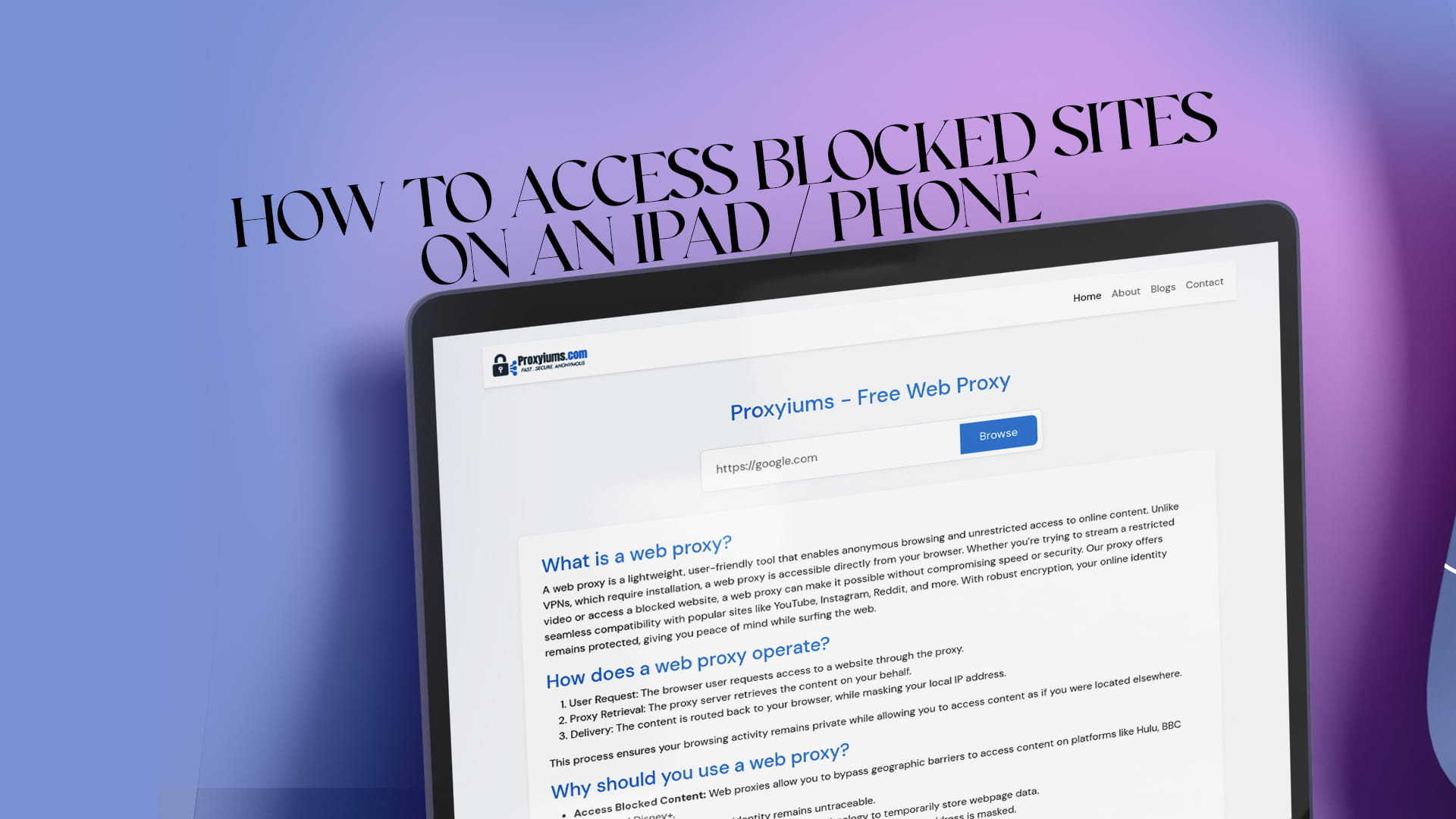
Hitting a blocked website on your iPad or phone is annoying, especially when you are away from a computer and just want to read something or watch a quick video. The fix depends on why the site is blocked in the first place, and on mobile there are a few different causes worth knowing. This guide shows you how to figure out what is blocking the site and how to open it again, with methods that work on both iOS and Android and mostly need no app at all.
First, figure out why the site is blocked
A site can be blocked on a phone or tablet for several different reasons, and knowing which one you are dealing with points you to the right fix.
It might be the Wi-Fi network you are on, such as school or office Wi-Fi that filters certain sites. It might be your internet provider blocking the site at the network level. On an iPhone or iPad specifically, it could be the built-in Screen Time restrictions limiting web content. It could also be a geo-restriction, where the site is only available in certain countries, or a block on the website's own end.
A quick test sorts most of this out: try the site on mobile data instead of Wi-Fi. If it loads on cellular but not on Wi-Fi, the Wi-Fi network is doing the blocking. If it fails on both, the cause is more likely your provider, a device setting, or the site itself. Keep that result in mind as you pick a method below.
Fix 1: Check Screen Time restrictions (iPhone and iPad)
If you see a message that the page is restricted, the block may be coming from inside the device rather than the network. On iOS, Screen Time can limit web content.
Open Settings and go to Screen Time, then Content and Privacy Restrictions, then the section covering web content. From there you can adjust what is allowed and remove a site from the limited list. This only works if you have permission to change these settings, since they are often set by a parent or administrator with a passcode. If the restriction is managed by someone else, the right move is to ask them rather than try to force it.
On Android, similar controls live in Digital Wellbeing or a parental control app, and they work the same way: if you have access, you can adjust the allowed sites there.
Fix 2: Use a free web proxy in your browser
If the block is on the network rather than the device, a web proxy is the quickest fix on mobile, mainly because it needs no app. A proxy acts as a middleman: instead of your phone connecting straight to a blocked site, it connects to the proxy, which fetches the page and sends it back. Since the request appears to come from the proxy rather than the blocked domain, the network filter does not catch it.
This matters a lot on a phone or tablet, where installing apps may be restricted or where you simply do not want another app. A web proxy runs right in Safari or Chrome.
Proxyiums is a user-friendly web proxy that works perfectly on mobile browsers. It enables anonymous browsing and unrestricted access to online content directly from your browser. Unlike a VPN app, which requires installation and setup, Proxyiums is accessible the moment you open the page on your phone. Whether you want to stream a restricted video or open a blocked website, it takes a couple of taps. This guide to Proxyiums as a free web proxy to unblock websites covers how it handles restricted content.
Proxyiums also protects your privacy on mobile. It encrypts your connection with SSL, even on sites that lack it, and hides your real IP address behind the proxy's. For more on that side of things, this overview of browsing fast and anonymously with a free web proxy is worth a look.
How to unblock a site with Proxyiums on iPhone or iPad
- Open Safari or Chrome on your device.
- Go to the Proxyiums website. Because it runs online, there is nothing to install. The way the web proxy works online is explained on the site.
- Type or paste the blocked URL into the proxy's input box.
- Tap connect and let the proxy load the page.
- Browse normally with your traffic routed through the proxy.
The same steps work on an Android phone or tablet using Chrome or any other browser.
Fix 3: Change your DNS settings
DNS is the system that translates a domain name into the numeric address your device connects to, and some providers block sites at this level. Switching to a public DNS often gets around that.
On an iPhone or iPad, open Settings, tap Wi-Fi, then tap the small information icon next to your network. Scroll to Configure DNS and switch it to Manual. Remove the existing entries and add a public resolver such as Google's 8.8.8.8 and 8.8.4.4, or Cloudflare's 1.1.1.1. Save, then reload the blocked site. On Android, the equivalent setting is often called Private DNS in your network settings, where you can enter a public DNS provider.
This is effective against DNS-based blocks set by an internet provider. It will not help if the block is happening somewhere else, but it is quick to test.
Fix 4: Switch to cellular data or a hotspot
If the site only fails on a particular Wi-Fi network, the simplest fix is to leave that network. Turn off Wi-Fi and use your cellular data, or have a friend turn on their personal hotspot and connect to that. Your traffic then travels over the carrier instead of the filtered Wi-Fi, so the network's rules no longer apply. You will use your own mobile data, but for a quick task it is the cleanest separation there is.
Fix 5: Try a URL shortener
URL filtering sometimes targets the exact web address. Running the blocked URL through a shortener like Bitly or TinyURL produces a different link that a basic filter may not recognize. Paste the address into the shortener, copy the new link, and open it in your browser. It works best against simple domain-based blocks and takes only a moment to try.
A note on VPN apps
You can install a VPN app on a phone or tablet, and a reputable one gives strong, device-wide protection. The downsides are that good ones cost money, free ones can be slow or risky, and on a managed school or work device you may not be able to install apps at all. For the specific job of opening a blocked site quickly on mobile, a browser-based proxy avoids the install step entirely, which is why it is usually the more convenient choice. You can weigh what a no-install free web proxy offers against a full VPN based on how much you need to protect.
Staying safe on mobile
A few habits keep your mobile browsing secure. Prefer proxies that use SSL encryption, like Proxyiums, so your traffic stays private. Avoid sketchy "unblocker" apps from outside the official app stores, since many carry ads or malware. Do not enter login details on any mirror or proxy page you do not trust, as some are built to harvest credentials. And clear your browser history after a session on a shared device if privacy matters to you. It is also smart to keep an eye on your wider online presence; this guide to checking your username availability across the internet is a handy way to see where your name already appears.
A word on responsible use
If the site is blocked by a parent's Screen Time settings or a school's policy, the right step is to talk to whoever set the restriction rather than work around it. Use these methods for legitimate reasons, like reaching a research page, a news story, or content the filter caught by mistake, and keep what you access appropriate.
Final thoughts
Opening a blocked site on an iPad or phone usually comes down to one question: what is doing the blocking? Test on mobile data to find out, then match the fix to the cause. If it is a device restriction, adjust Screen Time. If it is the network, a free web proxy like Proxyiums opens the page in your browser with no app to install, encrypts your connection, and hides your IP. DNS changes, URL shorteners, and cellular data round out your options. Start with the proxy for speed, keep the others in reserve, and you will have the open mobile internet you are after.